Account and preferences1 min read
Make the workspace easier to use
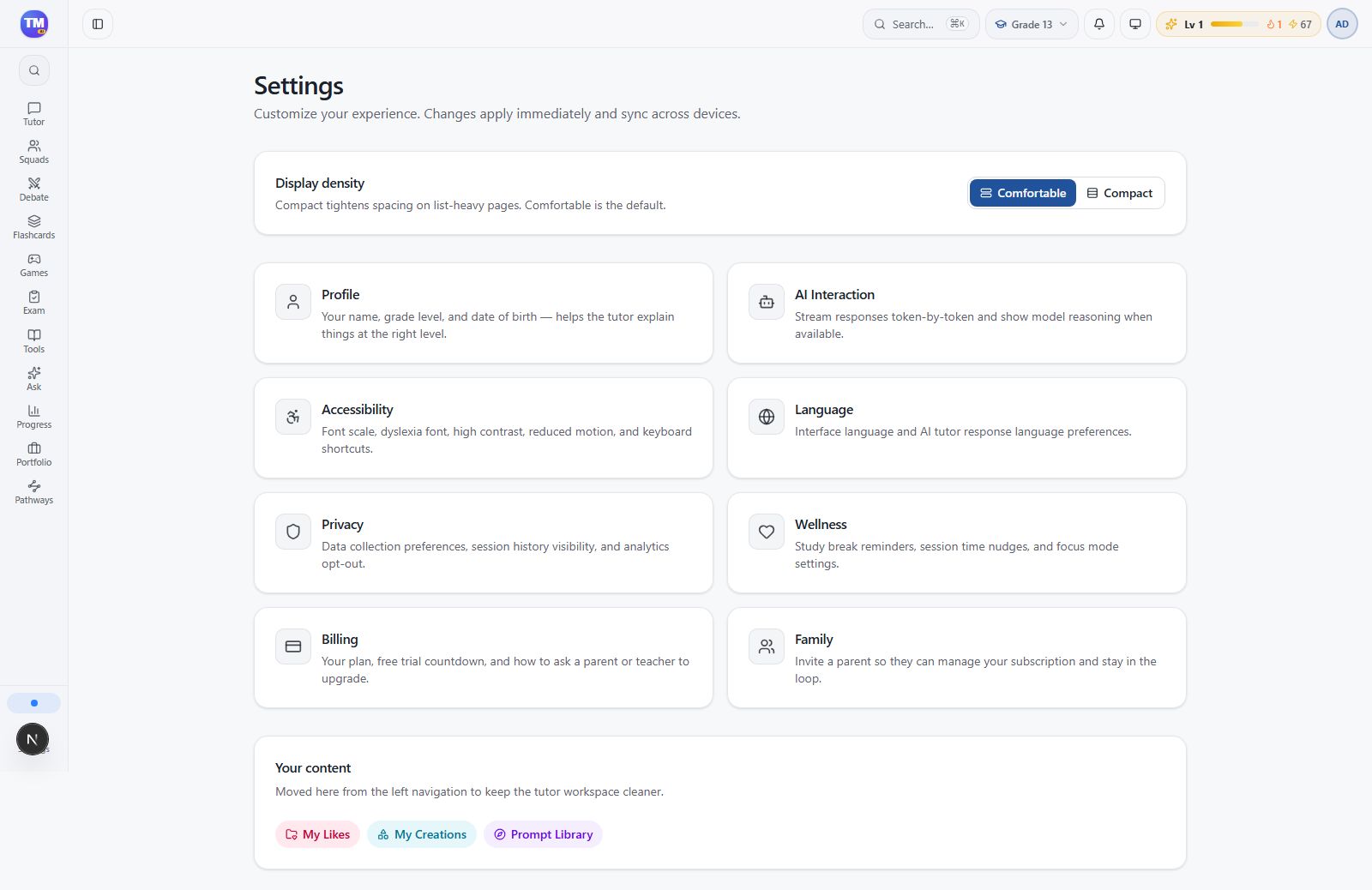
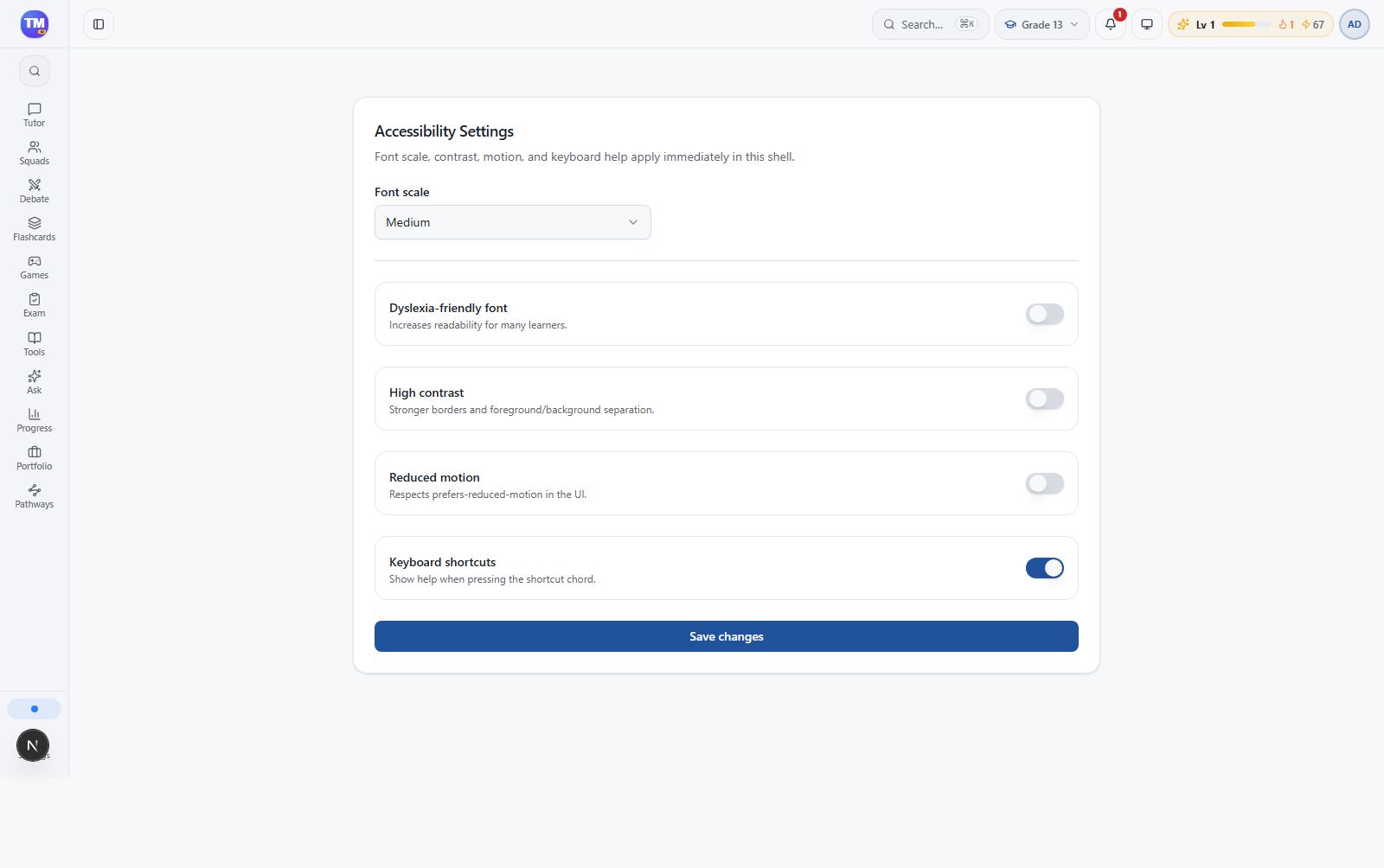
Accessibility settings let you adjust how the workspace appears and behaves. Open Settings → Accessibility.
Adjust one preference at a time
Section titled “Adjust one preference at a time”- Open the accessibility page.
- Set Font scale to a comfortable size.
- Try Dyslexia-friendly font if you prefer its letter shapes.
- Enable High contrast for stronger visual separation.
- Enable Reduced motion if animations distract you.
The page describes these settings as applying immediately in the workspace. Review the result before adjusting another preference.
Use the documentation with a keyboard
Section titled “Use the documentation with a keyboard”Use Tab to move between links and controls and Enter or Space to activate them. Screenshots have enlarge buttons; use Escape to close the image viewer. Narrated tours include a text transcript and native audio controls.
If you use assistive technology, follow the headings and written steps; every flowchart also includes its workflow in the surrounding guide.