Explore Pathways, labs, worlds, and field trips
Pathways combines advisory interests and skill gaps with suggested projects and immersive activities. Pathways is marked as non-production in the reviewed navigation. Confirm feature access before expecting these tools in a customer workspace.
Choose a next step from evidence
Section titled “Choose a next step from evidence”- Open Pathway Explorer and read each advisory match.
- Inspect the Fit score, interests, Build next skills, and suggested project. A fit score is a recommendation signal rather than a prediction of career success.
- Choose a learning task that addresses one visible gap. Use Portfolio for project evidence or University Plan for explicit future milestones.
- Inspect the available Labs, Worlds, and Field Trips catalogue.
- Choose Launch, Open, or Start on the intended template and confirm the session title.
Use an immersive session
Section titled “Use an immersive session”Read the objectives and instructions before interacting. Explore the supported scene or activity controls, answer checkpoint questions, and inspect the feedback and saved evidence. Use the retained 2D fallback or keyboard summary when a spatial view is inaccessible or your device cannot render it reliably.
Field-trip packs can support family learning or lower-connectivity use. Inspect the actual printable or downloadable controls before relying on a pack offline. A scene preview is not proof that a full pack was saved.
The Immersive Learning Hub links to this launch board, Study Capture, and Tutor continuity. It is a starting point rather than a separate guarantee that every immersive feature is enabled.
If a catalogue is empty or a launch fails, preserve the template title and error. Do not recreate a session until you have checked whether the first launch was already saved.
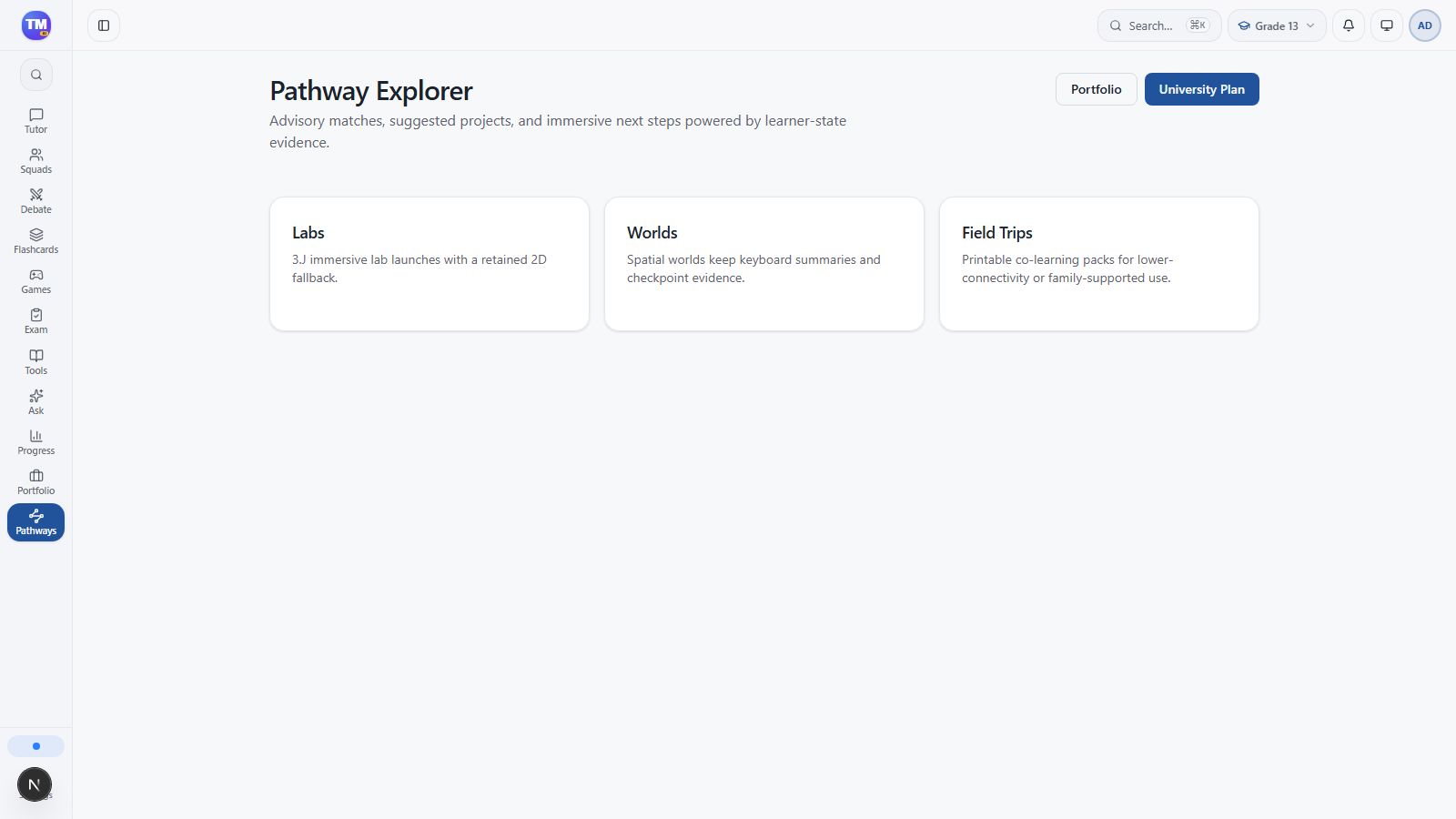
Pathways entry and available learning paths in the local workspace.
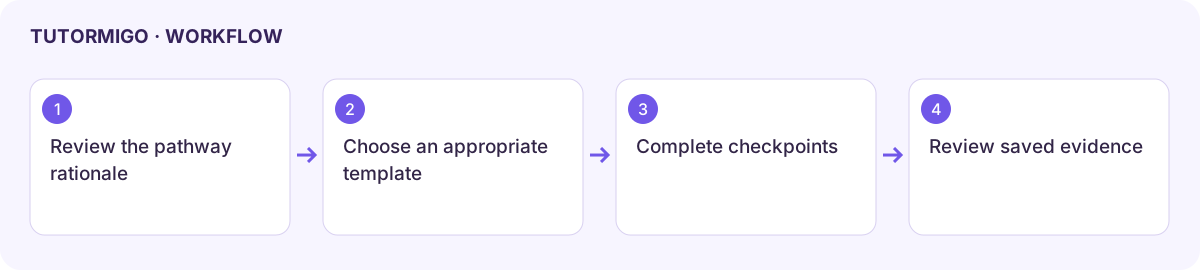
Workflow at a glance
Section titled “Workflow at a glance”