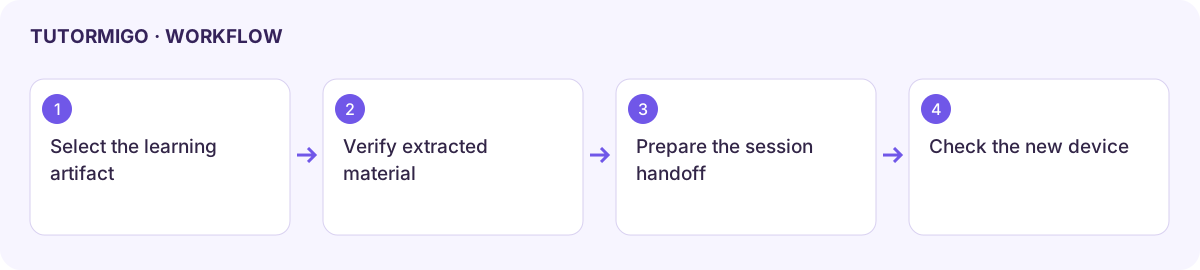
Use Study Capture and continue on another device
Study Capture starts from learning material, while Device Handoff prepares continuity for an existing session. These are separate from simply attaching a file to a message.
Analyse a captured artifact
Section titled “Analyse a captured artifact”- Open the available Study Capture surface from the learning hub or Tutor.
- Select or enter the displayed Artifact type and add the material or text required by the form.
- Choose the analysis action and inspect the returned classification and suggested learning steps.
- Review the extracted content against the original. Correct missing symbols, cropped questions, or misread text before using a hint, quiz, flashcard, or project-evidence option.
- Use Back To Tutor to continue with a focused question.
The reviewed standalone capture form is a basic artifact-analysis surface. A worksheet upload or live camera feature must be used through the actual capture controls offered in your deployment; typing an artifact type does not upload a photo.
Prepare a handoff
Section titled “Prepare a handoff”Open Device Handoff for the intended session through its available link. Check the generated token and Expires value. Follow the displayed continuation instructions on the new device before the expiry window ends. Confirm that the expected session and latest work appear before continuing.
Treat the token as private. Do not post it in a group chat or include it in public screenshots. If it expires, generate a new handoff through the original session. A token displayed on one device does not prove it was redeemed on another.
The learning hub references offline continuity, but an offline-synchronization control must be visibly available before you rely on it. Keep local work until the interface confirms synchronization.
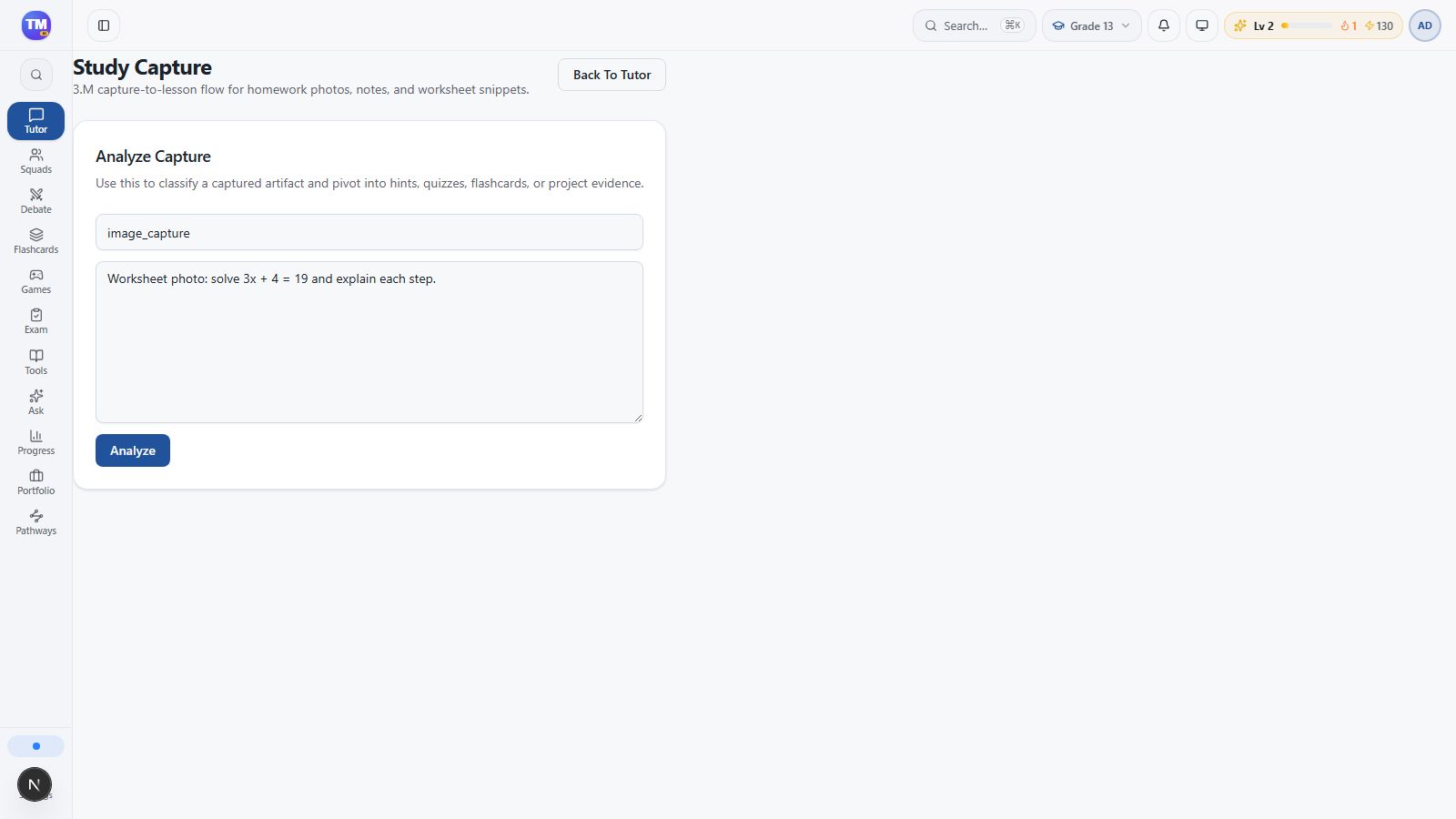
Study Capture analysis entry with artifact text and analysis action.
Workflow at a glance
Section titled “Workflow at a glance”