
Attempt a coding challenge
Code Challenge Hub offers defined programming tasks with a detail workspace. Use Code Sandbox when you want to experiment freely instead of completing a set challenge.
Watch the walkthrough
Section titled “Watch the walkthrough”Read the walkthrough transcript
1. Filter and choose a challenge
Let's practise checking a program against a task. Filter the Code Challenge Hub to Python and difficulty one. Open Sum Two Numbers and read what the program must do.
2. Type and submit an attempt
The task asks us to print seven plus thirteen. Here we deliberately use subtraction first, so we can inspect a failed attempt. Choose Submit Solution; this screen has no separate Run button.
3. Inspect the failed attempt
The output is minus six, and the evaluator reports zero of one tests passed. The program ran, but it didn't meet the addition task. Read both the output and the test result.
4. Correct one thing and resubmit
Change the minus sign to plus and submit again. The output is now twenty, which matches the arithmetic. Make small corrections like this so you can explain what changed.
5. Distinguish output from grading
Notice that the local evaluator still reports zero of one tests passed. Correct output and a passing grade are separate checks. Keep this result and report the evaluation mismatch; don't claim completion just because the output looks right.
Download video · Captions · Transcript
Work through a challenge
Section titled “Work through a challenge”- Open Code Challenge Hub from the available tools or class activity.
- Filter by language: Python, JavaScript, or HTML, and by the displayed difficulty level.
- Open a challenge and read its description, language, XP reward, and starter code in the editor.
- Edit the code to meet the described task, then choose Submit Solution. The reviewed detail screen evaluates the submitted source; it has no separate Run button.
- Read Passed X/Y tests, standard output, and any execution error. Revise one problem at a time and submit again.
Do not assume printed output passes every requirement. Check boundary cases from the prompt, such as an empty list or a missing value, when relevant. Explain why your approach works rather than only copying a solution.
Use Back To Hub to choose another task. If no challenge matches the filters, clear them or ask the teacher about the assigned resource. If execution is unavailable, keep the attempted code and error instead of assuming it was graded.
The student hub and teacher challenge-management surface have separate permissions. A teacher-created or classroom-launched challenge must still be opened within your own student account.
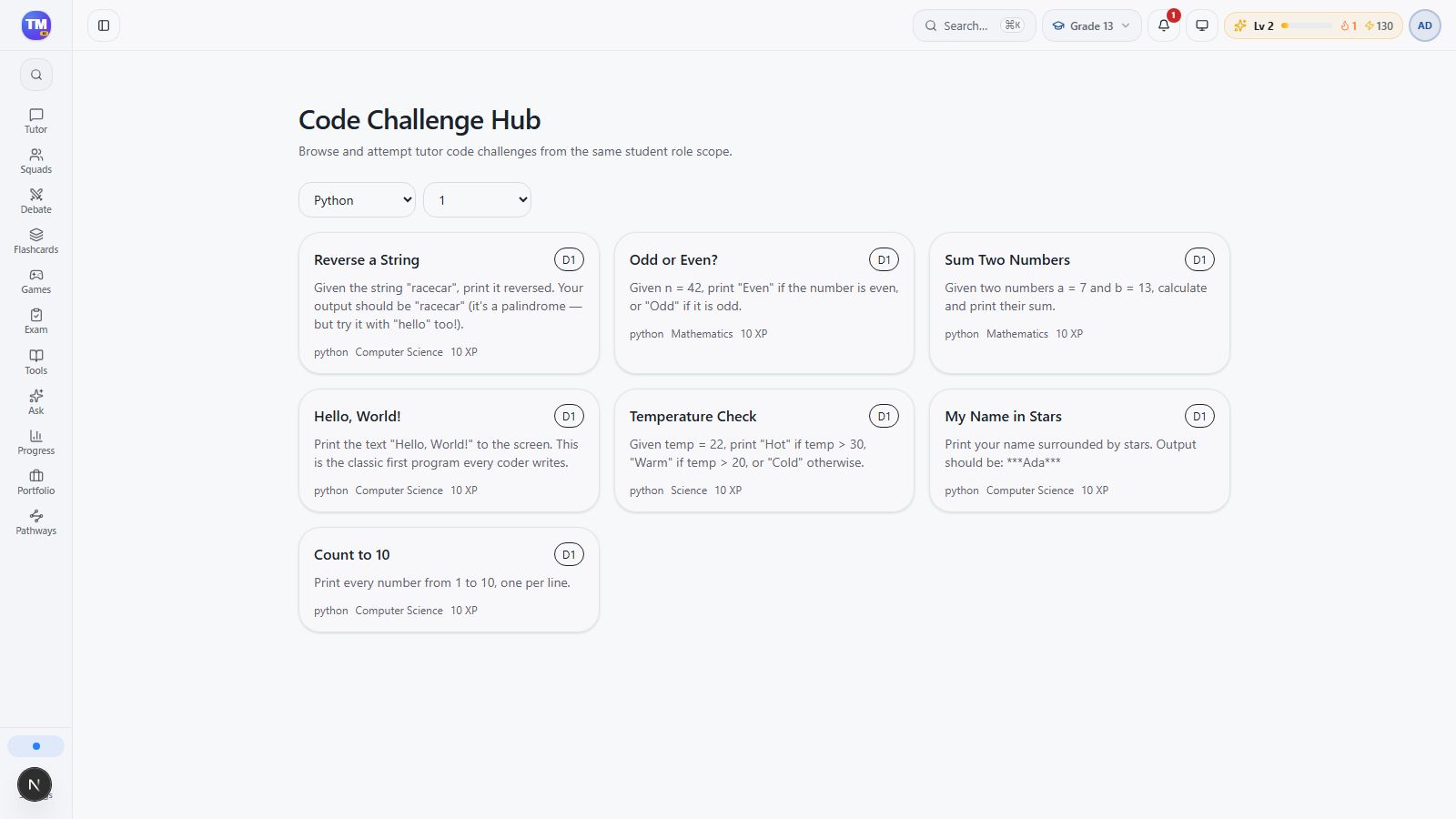
Python difficulty-one challenges after applying both filters.
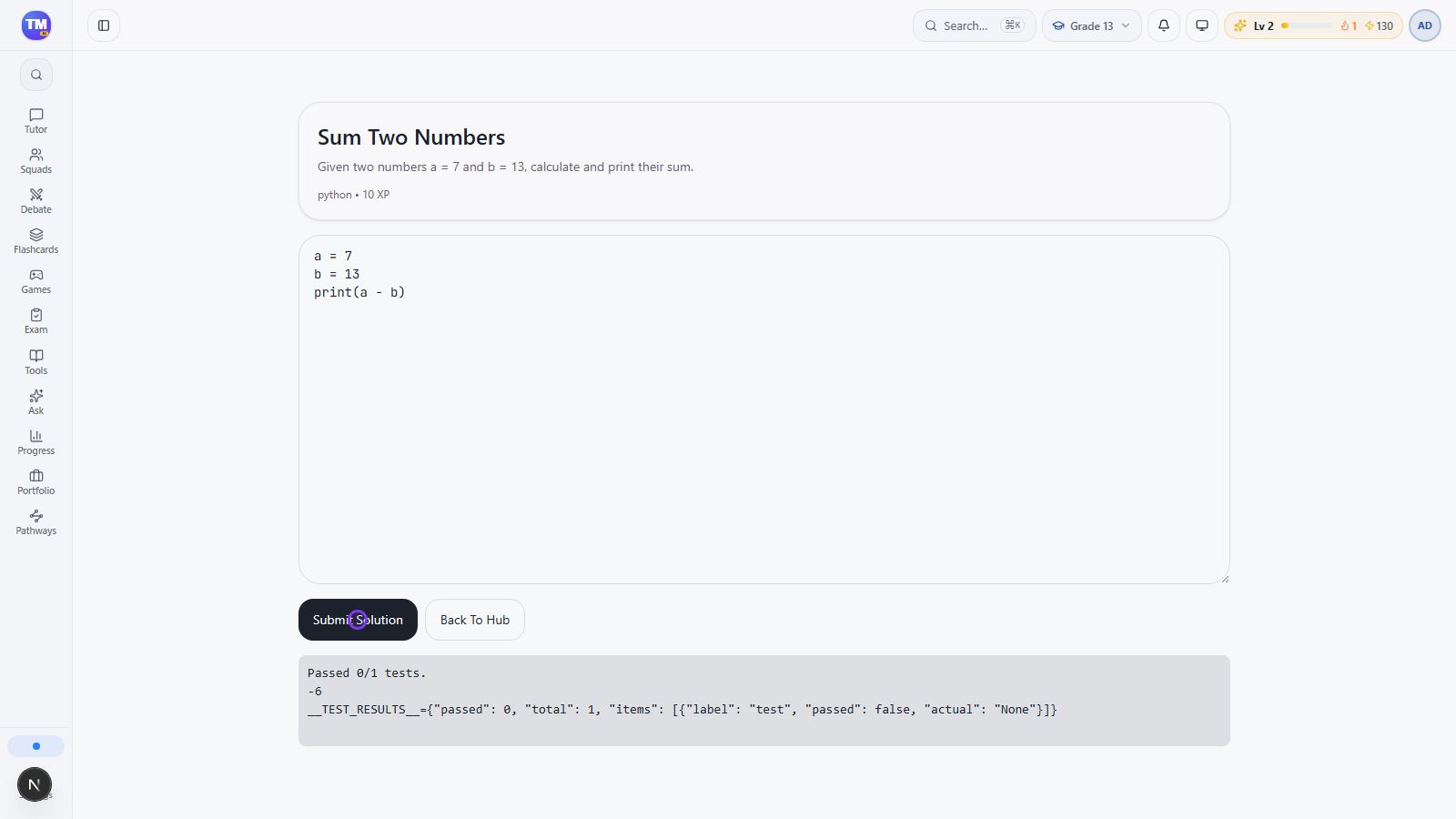
Subtraction attempt prints minus six and fails the displayed test.
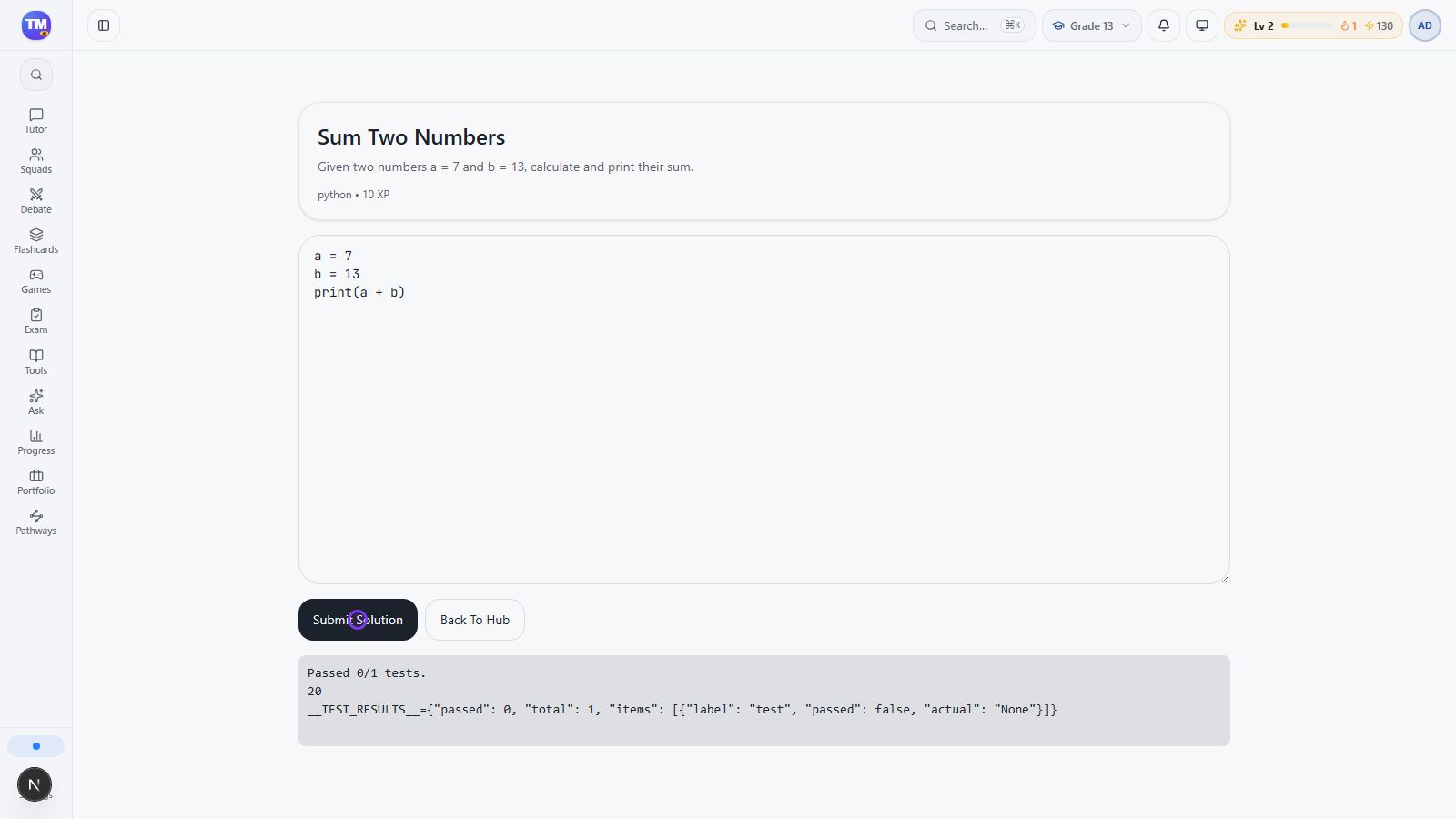
Corrected addition prints twenty while the local evaluator still reports zero of one tests passed.
Workflow at a glance
Section titled “Workflow at a glance”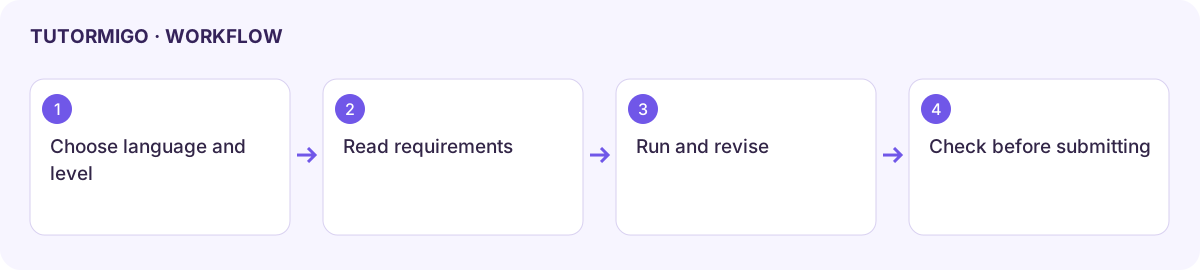
If output and evaluation disagree
Section titled “If output and evaluation disagree”The recorded example first prints -6 with subtraction, then prints 20 after correcting the operator to addition. The local evaluator still reports Passed 0/1 tests for the corrected program. This verifies submission and execution, but it does not verify a passing grade. Keep the challenge name, attempted code, output, and test result when reporting such a mismatch. Do not keep resubmitting unchanged code or assume XP was awarded.