Keep project evidence in Portfolio
Portfolio groups projects, milestones, artifacts, feedback, credentials, and policy-controlled showcases. Portfolio is marked as non-production in the reviewed navigation; use this guide only when your deployment and account enable it.
Create and inspect a project
Section titled “Create and inspect a project”- Open Portfolio and Future Readiness and read the available project types and controls.
- Enter a clear project title and choose the creation action. The reviewed basic form creates a capstone project; it does not expose every project type mentioned in the description.
- Find the new project under Projects, choose Open, and inspect its status.
- Review Milestones, Artifacts, and Feedback in the project workspace.
- Add evidence through the controls actually available. The current basic reflection action adds a predefined reflection entry; it is not a full custom reflection editor.
Keep the original work and check that the stored evidence describes what you actually completed. A credential entry records system evidence; it should not be presented as an externally accredited qualification unless that accreditation is independently established.
Review a showcase
Section titled “Review a showcase”In Showcase Controls, check the project and audience before creating a supported showcase. Keep younger learners’ work non-public unless the required policy and consent allow sharing. Review the token and status in Credentials And Showcases; protect tokens from accidental disclosure.
An empty project list or unavailable showcase can reflect missing evidence, feature access, or policy. Do not assume a showcase link is usable until its intended audience can open the correct content.
Next: Pathways and learner-twin evidence.
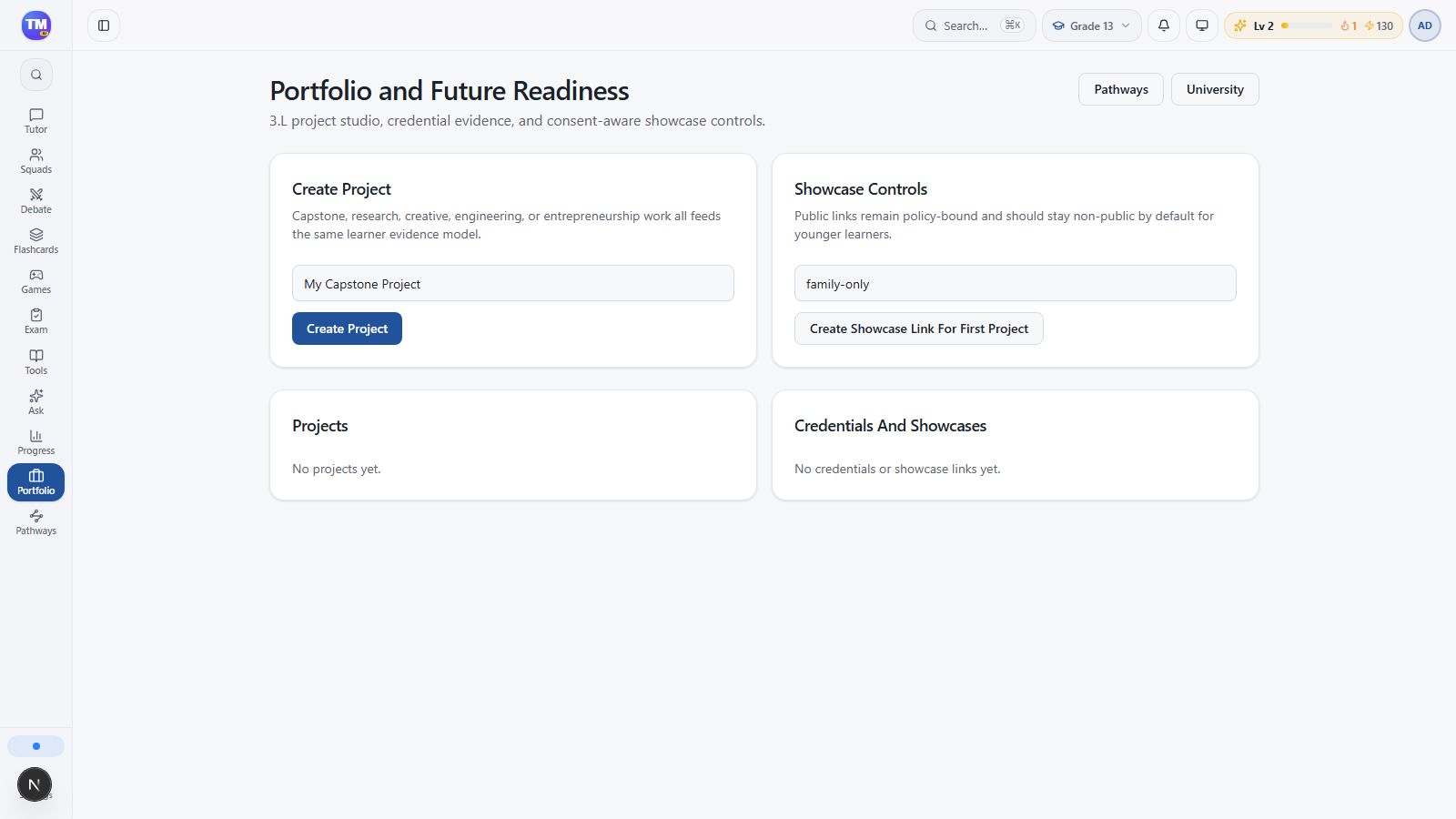
Portfolio project, evidence, and showcase controls in the local non-production workspace.
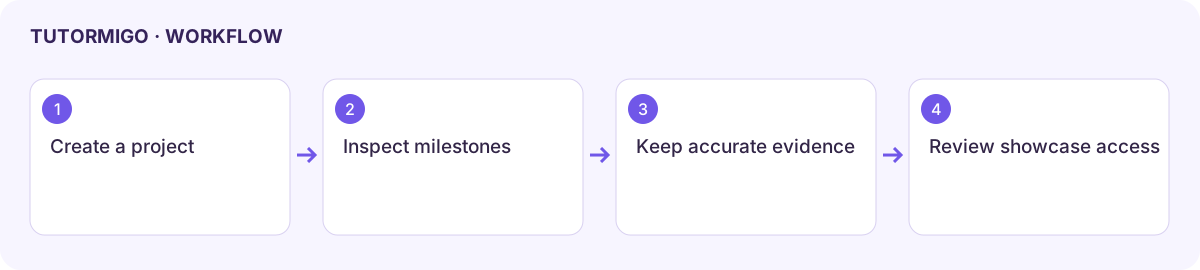
Workflow at a glance
Section titled “Workflow at a glance”