For parents2 min read
Read activity, reports, and future-readiness evidence
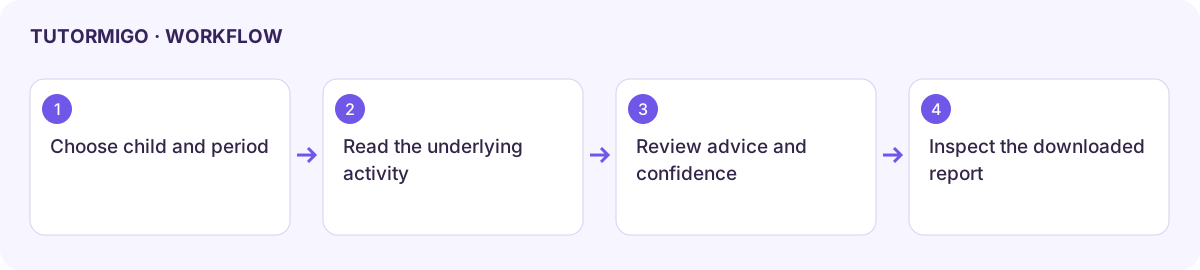
Open Children and choose the correct learner before inspecting a detail view. Family data is child-scoped; dashboard summaries and individual reports can use different time windows.
Read the activity and report
Section titled “Read the activity and report”- Open Activity Feed and read AI Daily Summary alongside Recent Activity.
- Check the topics, quiz checks, mastery signals, flashcard reviews, badges, and XP behind the summary.
- Open Parent Report and choose Weekly or Monthly.
- Compare study time, quiz accuracy, mastery, misconceptions, analysis, and recommendations with the actual period and source activity.
- Use the supported PDF download and open the resulting file. Inspect Email delivery status separately; a PDF download does not prove email delivery.
Review the related child views
Section titled “Review the related child views”| View | What to inspect |
|---|---|
| Progress / Learner Twin | Confidence, learning evidence, predictions, and suggested next steps. |
| Exam Prep | Enrollment and completed practice or mock evidence for that child. |
| Classroom | The child’s class launches and room context. |
| Future Readiness | Advisory pathways, projects, internship preparation, and consent-bound showcases. |
| Study Capture Support | Review the extracted learning text before submitting it through the child-scoped capture form. The basic form is not a full camera uploader. |
If a report is empty, confirm the selected child, period, and recorded activity. A missing prediction or zero activity field does not establish a child’s ability. Use a recommendation as a conversation starter and choose one practical next task.
Next: co-learning and controls.
Workflow at a glance
Section titled “Workflow at a glance”