Adjust AI responses, language, and study reminders
These settings change how you interact with TutorMigo. Make one small change and try a short lesson so you can judge whether it helps.
AI Interaction
Section titled “AI Interaction”Open Settings → AI. Review Stream responses, Show thinking, Auto read aloud, and Read-aloud speed. The available speeds range from 0.75× to 2× in the reviewed form. Save, then test a response. Show thinking is an educational explanation feature; it should not be treated as guaranteed access to a model’s internal reasoning.
Auto read aloud speaks text responses and differs from a live voice conversation or a generated audio lesson. See Voice Mode for two-way speech controls.
Language
Section titled “Language”In Settings → Language, distinguish UI language from Content language. UI language changes the interface; content language steers tutoring replies. Choose the intended options, save where required, and inspect the next lesson. A home-language profile field is separate from these interface preferences.
Wellness
Section titled “Wellness”In Settings → Wellness, review Session time reminder, its duration, Break notifications, the break interval, and Daily study goal. Choose a realistic routine, save, and check the persisted values. These reminders are different from parent-enforced time limits or quiet hours.
If audio or reminders do not work, check the relevant app setting and browser permission. If language is unexpected, inspect both UI and content language rather than repeatedly recreating the lesson. Use accessibility settings for font, contrast, and motion preferences.
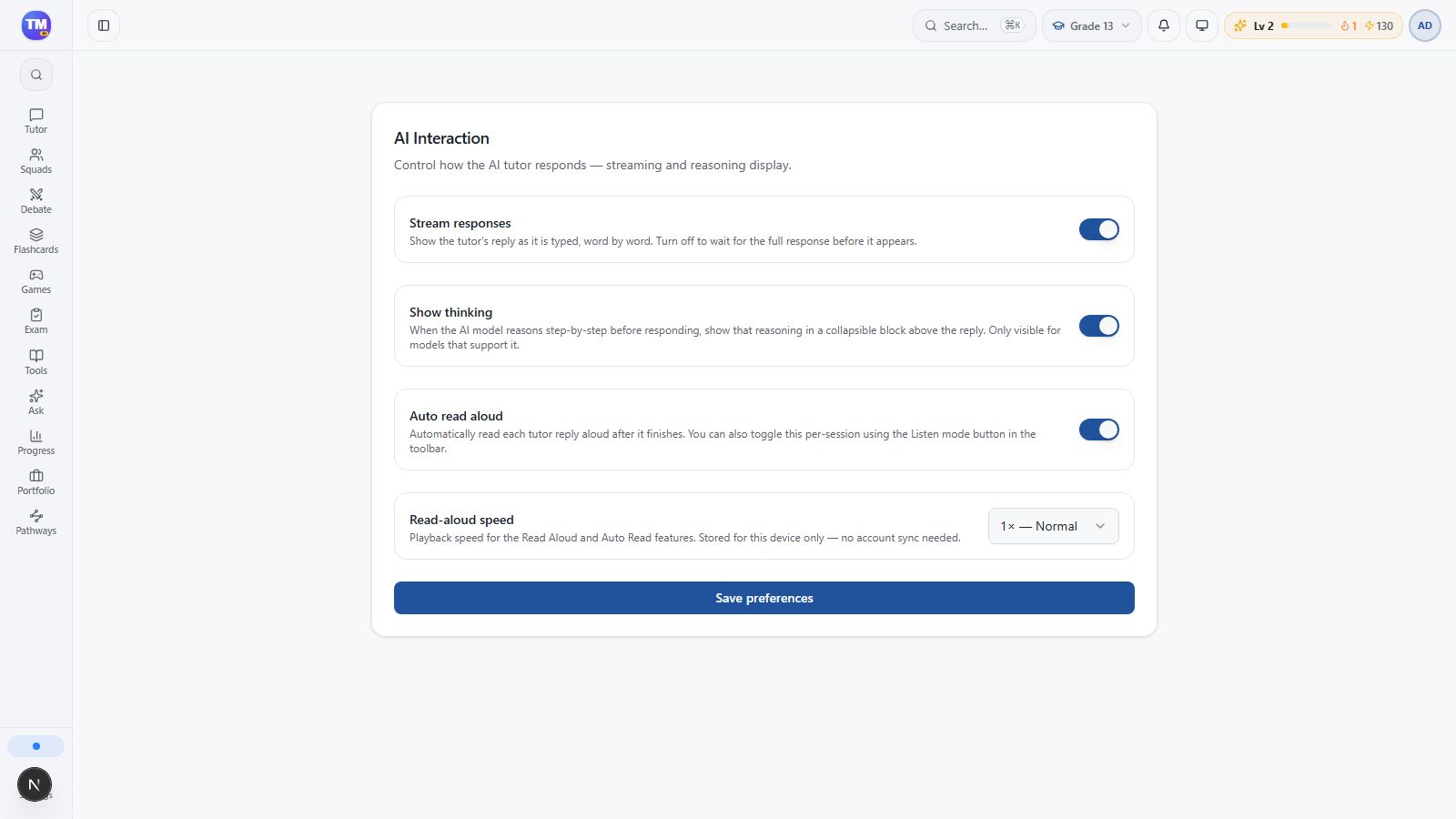
AI Interaction preferences for streaming, thinking display, and read-aloud.
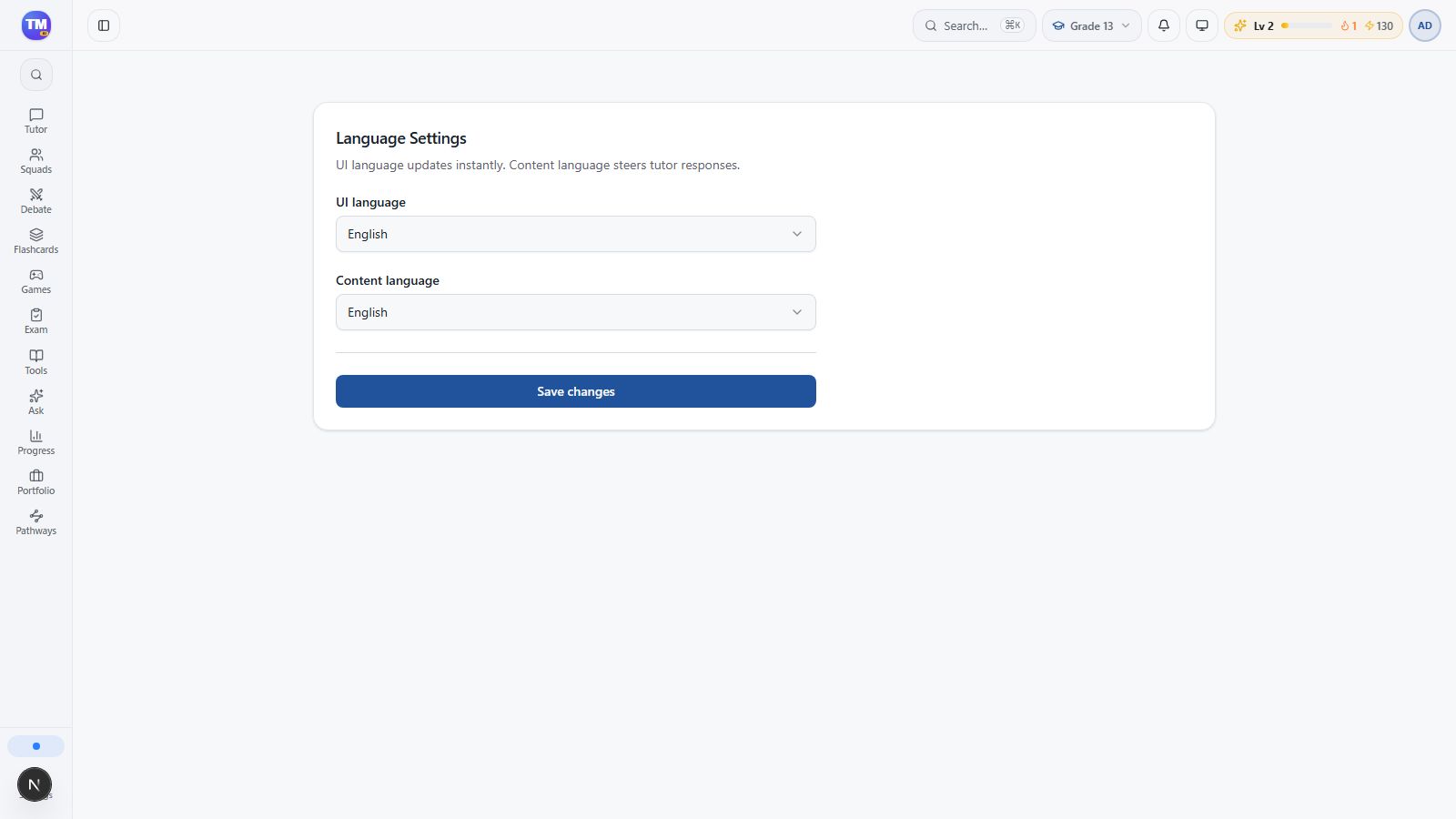
Language preferences and available localization controls.
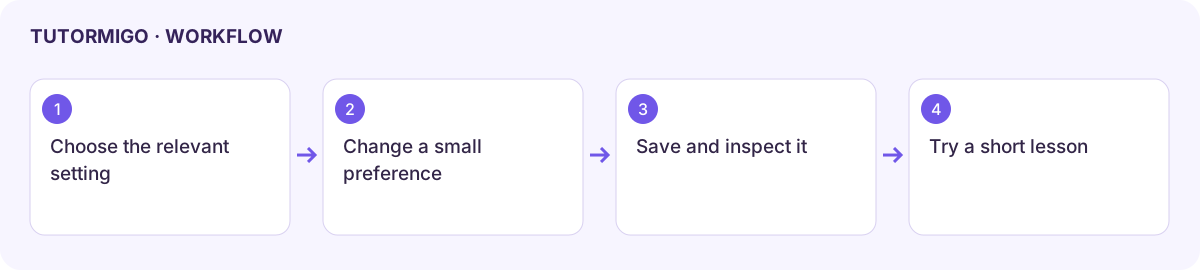
Workflow at a glance
Section titled “Workflow at a glance”