Manage your profile, family links, and account security
Use Settings → Profile for your learner information and Family for supported family links. Managed student and independent accounts have different controls.
Review your profile
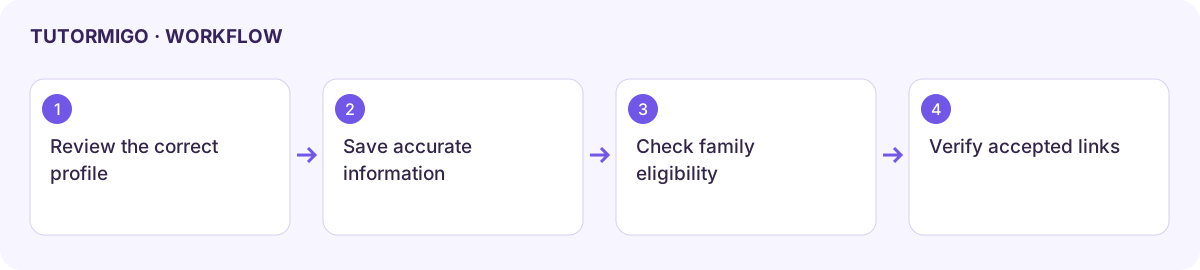
Section titled “Review your profile”- Inspect Display Name, Username, Grade Level, date of birth, and Home Language.
- Change only the fields the screen permits. The reviewed username is shown as an account identifier and cannot be changed there.
- Save, then reopen the profile to check the values. Date of birth and grade can affect learning and family policy, so use accurate information.
- Inspect the available account-security and PIN sections. Follow the specific workflow for your account; do not reuse a PIN from another learner.
Link a parent and understand age eligibility
Section titled “Link a parent and understand age eligibility”In Family, use the supported parent invitation when you want the intended adult linked to your account. Review the address and effect before sending. Verify the accepted relationship rather than assuming an invitation immediately created access.
The Adult account controls section can offer eligible independent learners a parental-controls removal process. Read its eligibility and confirmation; it is not available to every managed account. Age-up migration for a managed child is initiated through the parent controls and must follow its handoff window.
Referrals and billing
Section titled “Referrals and billing”Use the profile’s referral card to inspect your own referral information and the current rules. Rewards and billing eligibility can change; rely on the displayed account terms and billing guide. Never share a login PIN or private access token as a referral code.
If a link or security control fails, retain the error and contact the adult or support team responsible for the account rather than creating a duplicate identity.
Workflow at a glance
Section titled “Workflow at a glance”